IDE Features
The layout and the features are continuously improving.
1. Admin View
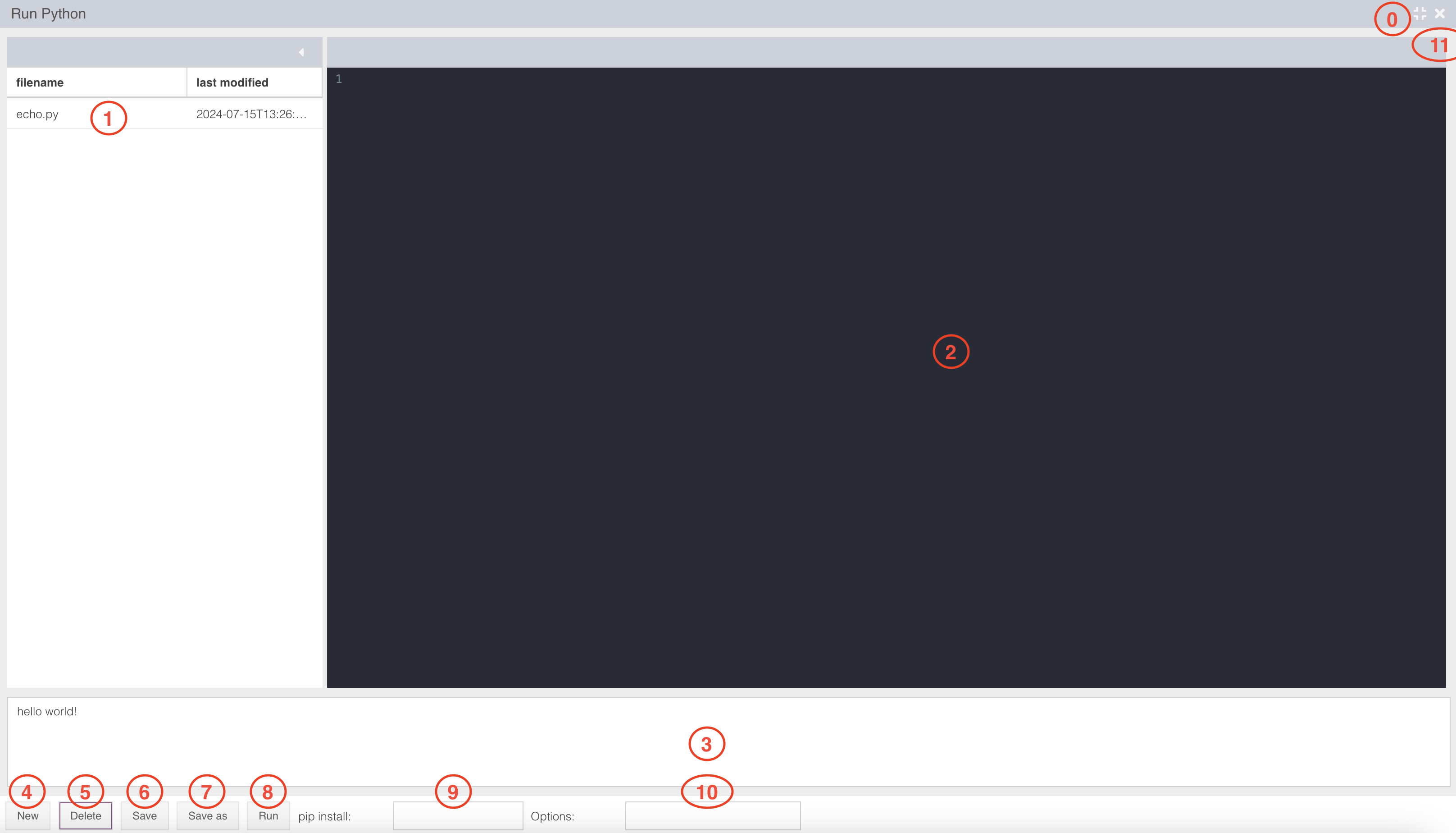
0. enlarge icon: enlarge the python IDE
python file list : list of the python files
code area: the python code can be edited and viewed there
The admins can write comments inside python comment block such as
'''description in the comment block'''will be displayed to the users, who do not have the admin right to read the code in the code area.output area: the output is there
new icon: create a new python file
delete icon: delete the python file
save icon: delete the python code
save as icon: delete the python code as new file
run icon: run the python code
pip install area: install the packages by entering the package names divided using a “,” for example:
xplain, panda, streamlitoptions: multiple options can be set in the input field “Options”, separated by spaces. Options syntax:
--<option_name>=option_valueclose icon: close the IDE
2. Admin View with server-side enabled

The admin view with the server side enabled has one more feature, which is the serverside checkbox. By default, this checkbox does not appear, instead the pyodide webassembly is used. This checkbox is only visible if the user has an admin role and the backend is started with the application property xplain.serverside.python=true.
3. User View
.png)
0. enlarge icon: enlarge the python IDE
python file list : list of the python files
code area: the python code can be edited and viewed there
The admins can write comments inside python comment block such as'''description in the comment block'''will be displayed to the users, who do not have the admin right to read the code in the code area.output area: the output is there
run icon: run the python code
pip install area: install area are automatically filled for the user. Install the packages by entering the package names divided using a “,” for example:
xplain, panda, streamlitoptions: options are set automatically for the user. Multiple options can be set in the input field “Options”, separated by spaces. Options syntax:
--<option_name>=option_valueclose icon: close the IDE